From Bolt.new to Cursor: Keeping Your AI Workflow While Adding Real DevOps
You've mastered rapid prototyping with Bolt.new. Now learn how to preserve that AI-first magic while gaining the professional tools you need to scale.
You've shipped 2-3 projects with Bolt.new. The AI-powered speed is incredible. Chat, iterate, deploy—all in minutes. But now you're hitting walls: you need better debugging, you want Git history, or you're tired of worrying about breaking everything with one wrong prompt.
Here's the truth: you don't have to choose between AI assistance and professional tooling. Cursor gives you everything Bolt.new offers for coding assistance, plus the full power of VS Code, Git integration, and a proper debugging suite. This weekend guide shows you exactly how to migrate without losing your momentum.
Before You Start: What You're Gaining
Let's be clear about what changes when you move from Bolt.new to Cursor:
| Capability | Bolt.new | Cursor |
|---|---|---|
| AI Chat Assistance | Built-in | Enhanced (GPT-4, Claude) |
| Code Generation | Fast | Context-aware |
| Version Control | Limited | Full Git integration |
| Debugging Tools | Basic console | Breakpoints, profiling |
| Testing Framework | Manual only | Jest, Vitest, etc. |
| Deployment Options | Netlify only | Any platform |
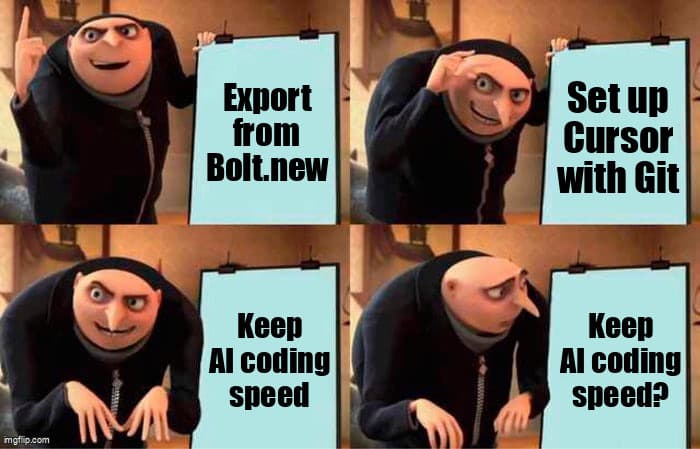
The best part? You keep the AI coding speed. Cursor's AI is actually better at understanding your codebase because it has access to your full project history and can search across all files.
Prerequisites: Get Ready in 15 Minutes
Before migrating, make sure you have:
- Your Bolt.new project accessible - Open it and keep the tab handy
- Cursor installed - Download from cursor.sh (it's free)
- Git installed - Run
git --versionin your terminal to check - GitHub account - Optional but recommended for backups
- Node.js installed - You likely already have this from Bolt.new work
Step-by-Step Migration Guide
Step 1: Export Your Bolt.new Project
Bolt.new doesn't have a built-in "export" button, but it's using WebContainers under the hood. Here's how to get your code out:
- Open your Bolt.new project and click on the file explorer icon in the left sidebar
- Identify your key files:
package.json- Dependencies listsrc/folder - Your source codepublic/folder - Static assets- Config files (
vite.config.ts,tsconfig.json, etc.)
- Download method: Click the "Download" button in Bolt.new's interface (usually in the top-right menu), or use the browser's inspect tool to access the WebContainer filesystem
- Alternative approach: If download isn't available, copy-paste your code files one by one into a local folder (tedious but reliable)
Pro tip: Create a new folder on your machine called my-project-cursor before you start copying files. This keeps things organized.
Step 2: Initialize a Local Git Repository
This is where you gain superpowers. Git gives you an "undo" button for your entire project.
What just happened? You created a snapshot of your code. Now if you break something, you can always git checkout . to undo your changes.
Step 3: Open Your Project in Cursor
Time to see Cursor's magic:
- Launch Cursor (it looks just like VS Code—because it is VS Code, enhanced)
- Open your folder: File → Open Folder → Select
my-project-cursor - Install dependencies: Open the integrated terminal (Ctrl+` or Cmd+`) and run:npm install
- Test your project: Run your dev server:npm run dev
If everything works, congrats! Your Bolt.new project is now running locally. If not, check the troubleshooting section below.
Step 4: Configure Cursor's AI Features
This is where you match (or exceed) Bolt.new's AI assistance:
- Enable Cursor's AI: Press
Cmd+K(Mac) orCtrl+K(Windows) to open the AI chat - Sign up for Cursor Pro (optional but recommended):
- Free tier: 50 AI requests/month
- Pro tier ($20/month): Unlimited GPT-4, Claude access
- Worth it if you were paying for Bolt.new
- Set up keyboard shortcuts you're used to:
Cmd+K- Quick AI edit (like Bolt's inline edits)Cmd+L- Open AI chat panel (like Bolt's chat)Cmd+Shift+K- Generate code from comment
Step 5: Workflow Translation Cheatsheet
Here's how your Bolt.new habits translate to Cursor:
| Bolt.new Action | Cursor Equivalent |
|---|---|
| Chat with AI to generate code | Cmd+L → type your request |
| Ask AI to fix an error | Highlight error → Cmd+K → "fix this" |
| Preview your app | Terminal: npm run dev → localhost link |
| Save changes | Cmd+S (auto-save enabled by default) |
| Undo bad AI suggestion | Cmd+Z or git checkout . |
| Deploy to production | Push to GitHub → Connect to Vercel/Netlify |
Skill Bridge: Vibe Concepts to Pro Concepts
You already understand these concepts from Bolt.new—here's what they're called in professional development:
- "Bolt's instant preview" → Hot Module Replacement (HMR)
Both Bolt.new and Cursor use Vite for instant updates. No difference in speed. - "Bolt's file explorer" → Project tree
Cursor's sidebar works the same way, plus you can search files withCmd+P. - "Bolt's AI chat history" → Git commit history
Instead of scrolling through chat, you view snapshots withgit log. - "Fixing broken builds" → Debugging with breakpoints
Click next to a line number to pause code execution and inspect variables. Way better than console.log(). - "Netlify deploy button" → CI/CD pipeline
Same one-click deploy, but now you control which branch deploys and can add tests.
Troubleshooting Common Migration Issues
Issue: "npm install" fails with dependency errors
Cause: Bolt.new sometimes uses unstable dependency versions.
Fix:
Issue: "Module not found" errors when running dev server
Cause: Bolt.new uses absolute imports that don't work locally.
Fix: Update your vite.config.ts or tsconfig.json to add path aliases:
Issue: Cursor's AI doesn't understand my project context
Cause: Cursor needs to index your files first.
Fix:
- Wait 2-3 minutes for indexing to complete (you'll see a progress bar)
- Use
@filenamein your AI prompts to reference specific files - Create a
.cursorrulesfile at your project root with context about your tech stack
Issue: I miss Bolt's instant deploy
Fix: Set up Vercel or Netlify with GitHub auto-deploy (takes 5 minutes):
- Push your code to GitHub:
git remote add origin <your-repo-url> - Connect your repo to Vercel or Netlify
- Every commit to
mainbranch auto-deploys (even faster than Bolt)
When to Stay with Bolt.new vs Switch to Cursor
Stick with Bolt.new when:
- You're prototyping throwaway demos (sub-1 hour projects)
- You're teaching someone to code and want zero setup friction
- You're on a Chromebook or tablet without local dev environment
- You need instant shareable preview links (Bolt excels here)
Switch to Cursor when:
- Your project has 10+ files (navigation gets painful in Bolt)
- You need to debug a complex bug (breakpoints save hours)
- You want to add automated tests (impossible in Bolt)
- You're collaborating with others (Git merges are essential)
- You're deploying to production (proper CI/CD matters)
- You hit Bolt.new's customization limits (env vars, API routes, etc.)
Next Steps: Level Up Further
You've successfully migrated to Cursor. Here's what to explore next:
- Learn Git branching - Create a
featurebranch for experiments so you can break things safely - Add testing - Start with one simple test using Vitest (ask Cursor's AI to generate it)
- Set up GitHub Actions - Auto-run tests on every commit (free on public repos)
- Explore Cursor's codebase chat - Ask "explain this function" or "find security issues"
- Join the Cursor community - Discord has thousands of devs sharing AI workflow tips
Remember: you haven't abandoned Bolt.new's philosophy. You've enhanced it. You still prototype fast with AI. You still ship features in hours, not days. You've just added the safety nets and power tools that let you build production-grade apps.
Ready to Deploy Smarter?
At Desplega AI, we help teams across Spain—Barcelona, Madrid, Valencia, and Malaga—transition from rapid prototyping to production-ready infrastructure. Contact us to level up your deployment process.
Get in TouchRelated Posts
Hot Module Replacement: Why Your Dev Server Restarts Are Killing Your Flow State | desplega.ai
Stop losing 2-3 hours daily to dev server restarts. Master HMR configuration in Vite and Next.js to maintain flow state, preserve component state, and boost coding velocity by 80%.
The Flaky Test Tax: Why Your Engineering Team is Secretly Burning Cash | desplega.ai
Discover how flaky tests create a hidden operational tax that costs CTOs millions in wasted compute, developer time, and delayed releases. Calculate your flakiness cost today.
The QA Death Spiral: When Your Test Suite Becomes Your Product | desplega.ai
An executive guide to recognizing when quality initiatives consume engineering capacity. Learn to identify test suite bloat, balance coverage vs velocity, and implement pragmatic quality gates.