
Visual Regression Testing: Why Your Eyes Are Lying to You
Your functional tests passed. Your QA team signed off. The deployment went smooth. Then a customer emails a screenshot showing your checkout button is 2 pixels off-center and covering critical text. Welcome to the world of visual bugs that your eyes—and your tests—completely missed.
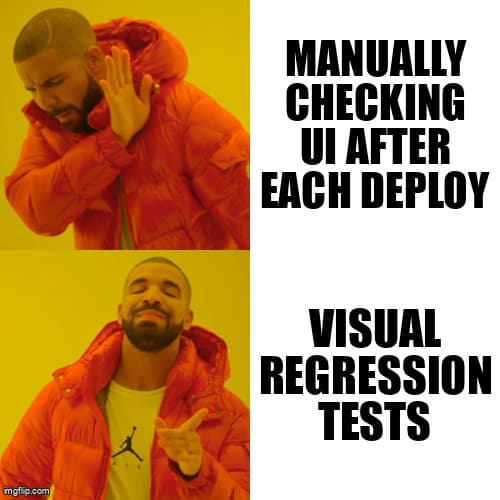
The Problem: Functional Tests Are Blind
Here's the uncomfortable truth: traditional functional tests only verify that elements exist and work. They don't verify that your UI actually looks correct.
Your Playwright test might successfully click a button, fill a form, and verify the success message appears. But it won't notice that:
- The navigation bar is now 300px tall instead of 60px
- Your hero image is stretched and pixelated
- The mobile menu is rendering on desktop screens
- Half your text is invisible because someone changed the background color
- The footer is overlapping the main content
These are visual regressions, and they're responsible for some of the most embarrassing production bugs you'll ever ship.
What Is Visual Regression Testing?
Visual regression testing is the practice of automatically comparing screenshots of your application before and after changes to detect unintended visual differences.
The workflow is simple:
- Baseline: Capture screenshots of your application in a known-good state
- Test: After making changes, capture new screenshots
- Compare: Use image diffing algorithms to highlight visual differences
- Review: Approve intentional changes, reject bugs
Think of it as version control for your UI's appearance.
Real-World Horror Stories
The Invisible Submit Button
A major SaaS company pushed a CSS update that changed their primary brand color from #0066cc to #0066dd. Looks similar, right? Except their submit button used #0066dd for both the background and the text color. The button became completely invisible.
Functional tests? All green. The button was clickable. The form submitted. But users couldn't see it. Conversion rate dropped 43% before someone noticed.
The Mobile Menu That Ate Desktop
A responsive CSS refactor accidentally removed a @media query breakpoint. The mobile hamburger menu started rendering on desktop screens, but the desktop navigation was still there too. Users saw both menus stacked on top of each other.
Selenium tests? Passed perfectly. They found the navigation links and clicked them. Nobody told Selenium that the UI looked like a glitchy mess.
Getting Started: Playwright Screenshots
The simplest way to start visual regression testing is with Playwright's built-in screenshot capabilities:
import { test, expect } from '@playwright/test';

test('homepage visual regression', async ({ page }) => {
  await page.goto('https://example.com');

  // Capture screenshot and compare to baseline
  await expect(page).toHaveScreenshot('homepage.png', {
    maxDiffPixels: 100, // Allow minor anti-aliasing differences
  });
});
The first time you run this test, Playwright captures a baseline screenshot. On subsequent runs, it compares new screenshots against the baseline and fails if differences exceed your threshold.
Practical Tips for Playwright Screenshots
- Wait for stability: Use
waitForLoadState('networkidle')to avoid capturing mid-animation - Hide dynamic content: Mask timestamps, user avatars, and other elements that change on every run
- Test specific components: Use
locator.screenshot()to test individual elements instead of full pages - Set consistent viewport sizes: Visual tests need identical screen dimensions to work
test('navigation bar component', async ({ page }) => {
  await page.goto('https://example.com');
  await page.waitForLoadState('networkidle');

  const navbar = page.locator('nav[role="navigation"]');

  // Mask dynamic elements
  await expect(navbar).toHaveScreenshot('navbar.png', {
    mask: [page.locator('.user-avatar'), page.locator('.timestamp')],
  });
});
Leveling Up: Percy and Applitools
While Playwright's built-in screenshots work great for simple cases, dedicated visual testing platforms like Percy and Applitools offer significant advantages:
Percy (BrowserStack Visual Testing)
Percy integrates seamlessly with Playwright and provides a web UI for reviewing visual diffs:
import percySnapshot from '@percy/playwright';

test('homepage visual test', async ({ page }) => {
  await page.goto('https://example.com');
  await percySnapshot(page, 'Homepage');
});
Percy's killer features:
- Cross-browser testing: Automatically captures screenshots in Chrome, Firefox, Edge, and Safari
- Responsive testing: Test multiple viewport sizes in a single snapshot
- Smart diffing: Ignores anti-aliasing differences and font rendering variations
- Review workflow: Team members can approve/reject changes through a web interface
Applitools
Applitools uses AI-powered visual testing to reduce false positives even further:
import { test } from '@playwright/test';
import { Eyes, Target } from '@applitools/eyes-playwright';

test('AI-powered visual test', async ({ page }) => {
  const eyes = new Eyes();

  await eyes.open(page, 'My App', 'Homepage Test');
  await page.goto('https://example.com');

  // AI compares visual appearance, not pixel-by-pixel
  await eyes.check('Homepage', Target.window().fully());

  await eyes.close();
});
Applitools excels at handling dynamic content. Its AI understands that a slightly different profile picture or timestamp shouldn't fail your test.
Common Pitfalls and How to Avoid Them
1. Dynamic Content Hell
Problem: Every screenshot shows different timestamps, user-generated content, or random promotional banners.
Solution: Use masking, test data fixtures, or component-level screenshots:
// Mask dynamic regions
await expect(page).toHaveScreenshot({
  mask: [
    page.locator('.timestamp'),
    page.locator('.ad-banner'),
    page.locator('[data-testid="user-avatar"]'),
  ],
});

// Or use test data to ensure consistency
await page.route('**/api/user', route => route.fulfill({
  body: JSON.stringify({ name: 'Test User', avatar: 'test.png' }),
}));
2. Font Rendering Differences
Problem: Fonts render differently across operating systems and browsers, causing false positives.
Solution: Run visual tests in Docker containers with consistent font configurations, or use Percy/Applitools which normalize font rendering.
3. Animation and Transition States
Problem: Screenshots capture animations mid-transition, creating inconsistent baselines.
Solution: Disable animations in test environments:
// Add to your test setup
await page.addStyleTag({
  content: `
    *, *::before, *::after {
      animation-duration: 0s !important;
      transition-duration: 0s !important;
    }
  `,
});
4. Responsive Design Challenges
Problem: Testing every possible viewport size is impractical.
Solution: Focus on your breakpoint boundaries and most common device sizes:
const viewports = [
  { name: 'mobile', width: 375, height: 667 },
  { name: 'tablet', width: 768, height: 1024 },
  { name: 'desktop', width: 1920, height: 1080 },
];

for (const viewport of viewports) {
  test(`homepage - ${viewport.name}`, async ({ page }) => {
    await page.setViewportSize(viewport);
    await page.goto('https://example.com');
    await expect(page).toHaveScreenshot(`homepage-${viewport.name}.png`);
  });
}
Building a Sustainable Visual Testing Strategy
Start Small
Don't try to add visual tests to your entire application overnight. Start with:
- Critical user journeys (login, checkout, signup)
- Components with complex CSS (navigation, modals, forms)
- Pages that break frequently during refactors
Integrate Into CI/CD
Visual regression tests should run automatically on every pull request. Configure Percy or Applitools to post results as PR comments:
# .github/workflows/visual-tests.yml
name: Visual Regression Tests

on: [pull_request]

jobs:
  visual-tests:
    runs-on: ubuntu-latest
    steps:
      - uses: actions/checkout@v3
      - uses: actions/setup-node@v3
      - run: npm ci
      - run: npx playwright install --with-deps
      - run: npm run test:visual
        env:
          PERCY_TOKEN: ${{ secrets.PERCY_TOKEN }}
Establish a Review Process
Not every visual change is a bug. Your team needs a clear process for:
- Reviewing and approving intentional UI changes
- Updating baselines after approved changes
- Investigating and fixing unexpected differences
When to Use Visual Regression Testing
Visual testing isn't a replacement for functional testing—it's a complement. Use visual regression tests when:
- ✅ Your application has complex UI components
- ✅ You're refactoring CSS or switching UI frameworks
- ✅ You've shipped visual bugs to production before
- ✅ Your team makes frequent design changes
- ✅ You support multiple browsers and screen sizes
Skip visual testing when:
- ❌ Your UI is extremely dynamic with no consistent baseline
- ❌ You're testing pure API functionality
- ❌ Your team lacks bandwidth to review visual diffs
The Bottom Line
Your eyes are unreliable. You'll look at the same screen 100 times and miss that the padding changed by 5 pixels or the border color shifted slightly. Visual regression testing automates the tedious work of comparing screenshots pixel-by-pixel so you can focus on building features instead of hunting invisible bugs.
Start simple with Playwright's built-in screenshots. If you're serious about preventing visual bugs, invest in Percy or Applitools. Your users won't thank you for preventing bugs they never see—but your conversion rate will.
Ready to Catch Visual Bugs Before Your Users Do?
Desplega.ai helps QA teams implement comprehensive automated testing strategies including visual regression testing. Get expert guidance on building test suites that actually catch bugs.
Start Testing SmarterRelated Posts
Hot Module Replacement: Why Your Dev Server Restarts Are Killing Your Flow State | desplega.ai
Stop losing 2-3 hours daily to dev server restarts. Master HMR configuration in Vite and Next.js to maintain flow state, preserve component state, and boost coding velocity by 80%.
The Flaky Test Tax: Why Your Engineering Team is Secretly Burning Cash | desplega.ai
Discover how flaky tests create a hidden operational tax that costs CTOs millions in wasted compute, developer time, and delayed releases. Calculate your flakiness cost today.
The QA Death Spiral: When Your Test Suite Becomes Your Product | desplega.ai
An executive guide to recognizing when quality initiatives consume engineering capacity. Learn to identify test suite bloat, balance coverage vs velocity, and implement pragmatic quality gates.