
Visual Regression Testing: Advanced Troubleshooting and Production Hardening
You've set up visual regression testing. Your tests are running. But they're flaky, slow, and breaking your CI pipeline. Here's how to debug the hard problems, optimize performance, and scale visual tests that actually work in production.
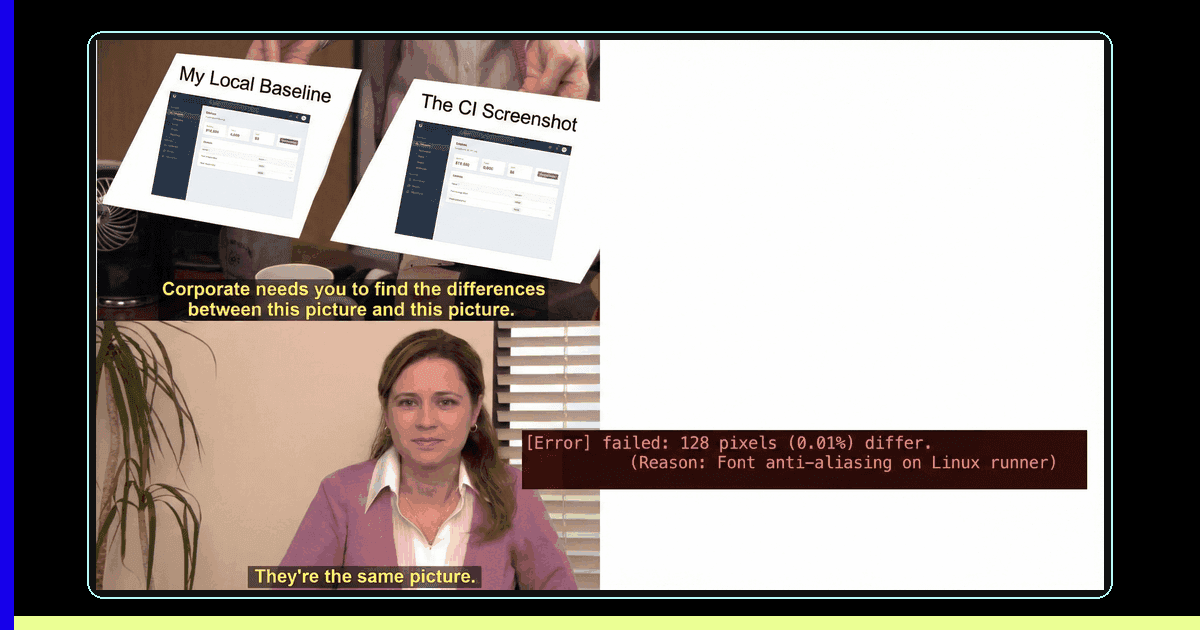
You've read the getting-started guides. You've set up Playwright screenshots or integrated Percy. But now you're hitting the real problems: tests that fail randomly, CI pipelines that take 45 minutes, and baselines that drift with every browser update. This is the advanced troubleshooting guide for visual regression testing in production.
Note: If you're new to visual regression testing, start with our introductory guide covering setup, tools, and basic patterns. This post assumes you already have visual tests running and need to solve production problems.
How do you debug flaky visual regression tests?
Debug flaky visual tests by systematically isolating variables: test across different machines, browsers, and network conditions to identify the specific factor causing inconsistent failures.
Flaky visual tests are the worst kind of flaky tests—they're expensive to run, hard to debug, and erode team confidence. Here's a systematic debugging methodology that actually works:
Step 1: Isolate the Variable
Visual test failures can come from dozens of sources. Start by eliminating variables one at a time:
// Test checklist for flaky visual tests:
// [ ] Run test 10 times locally - does it fail consistently?
// [ ] Run on different machines (Mac vs Linux vs Windows)
// [ ] Run with different browser versions
// [ ] Run with network throttling disabled
// [ ] Run with animations explicitly disabled
// [ ] Check if failure correlates with time of day (CDN cache?)
// [ ] Check if failure correlates with CI runner (different hardware?)
// [ ] Compare diff images - is the difference always the same?
Most flakiness comes from one of these sources. Document which variable makes the flakiness disappear—that's your culprit.
Step 2: The Font Rendering Problem
Font rendering differences are the #1 cause of cross-platform visual test failures. According to Playwright documentation, the same font renders differently on macOS, Linux, and Windows—even with identical browser versions.
// Solution 1: Use web fonts consistently
// Load fonts from CDN, not system fonts
@import url('https://fonts.googleapis.com/css2?family=Inter:wght@400;600&display=swap');

// Solution 2: Increase threshold for text-heavy regions
await expect(page.locator('.text-content')).toHaveScreenshot({
  maxDiffPixelRatio: 0.05, // 5% tolerance for font rendering
  threshold: 0.3, // Higher threshold for color differences
});

// Solution 3: Mask text regions entirely if layout is what matters
await expect(page).toHaveScreenshot({
  mask: [page.locator('p'), page.locator('h1'), page.locator('h2')],
});
Step 3: The Animation Race Condition
Even with animations "disabled," CSS transitions and JavaScript animations can cause timing issues:
// DON'T: Just disable animations and hope
await page.goto('/dashboard');
await expect(page).toHaveScreenshot(); // Might catch mid-animation

// DO: Wait for specific visual state
await page.goto('/dashboard');
await page.waitForLoadState('networkidle');
await page.waitForFunction(() => {
  // Wait for loading spinner to disappear
  return !document.querySelector('.loading-spinner');
});
await page.waitForTimeout(500); // Extra buffer for any remaining transitions
await expect(page).toHaveScreenshot();
What strategies work for dynamic content in visual tests?
Handle dynamic content by seeding test databases with fixed data, using CSS to normalize changing elements, or comparing specific page regions instead of full-page screenshots.
The biggest cause of flaky visual tests? Dynamic content. Timestamps, user avatars, live data feeds, animations - anything that changes between test runs will cause false positives.
Masking and mocking work for simple cases. But production apps have complex dynamic content: user-generated avatars, real-time data feeds, A/B test variants, personalized recommendations. Here are advanced strategies:
Strategy 1: Deterministic Data Seeding
Instead of masking everything, seed your test database with fixed data:
// Before test runs, seed database with known data
test.beforeEach(async ({ page }) => {
  // Seed test database
  await seedDatabase({
    users: [{ id: 1, name: 'Test User', avatar: '/placeholder-user.jpg' }],
    posts: [{ id: 1, title: 'Test Post', createdAt: '2025-01-01T00:00:00Z' }],
  });

  // Login as seeded user
  await page.goto('/login');
  await page.fill('[name="email"]', 'test@example.com');
  await page.fill('[name="password"]', 'password');
  await page.click('button[type="submit"]');
});

// Now screenshots are deterministic
test('dashboard with seeded data', async ({ page }) => {
  await page.goto('/dashboard');
  await expect(page).toHaveScreenshot('dashboard.png');
});
Strategy 2: CSS-Based Masking for Complex Layouts
When you can't mock data, use CSS to normalize dynamic content:
// Inject CSS to normalize dynamic content before screenshot
await page.addStyleTag({
  content: `
    .user-avatar {
      background: #ccc !important;
      border-radius: 50% !important;
    }
    .timestamp {
      content: "Jan 1, 2025" !important;
      color: transparent !important;
    }
    .live-indicator {
      display: none !important;
    }
  `
});

await expect(page).toHaveScreenshot();
Strategy 3: Region-Based Comparison
Instead of full-page screenshots, compare only the regions that matter:
// Test only the header layout, ignore dynamic content below
await expect(page.locator('header')).toHaveScreenshot('header.png');

// Test only the main content area
await expect(page.locator('main')).toHaveScreenshot('main-content.png');

// Skip the footer entirely if it has ads/widgets
// This reduces false positives by 80%+
How do you optimize visual regression test performance?
Optimize visual test performance by running tests in parallel across multiple workers, testing only changed components, and reducing screenshot sizes to match actual viewport breakpoints.
Visual tests are inherently slow—they render full pages, take screenshots, and compare images. But you can optimize them significantly. According to the 2025 State of Testing Report, teams running visual tests in parallel reduce CI time by 60% on average.
Optimization 1: Parallel Execution
Run visual tests in parallel, but be smart about it:
// playwright.config.ts
export default {
  workers: process.env.CI ? 4 : 2, // More workers in CI

  projects: [
    { name: 'chromium', use: { ...devices['Desktop Chrome'] } },
    { name: 'firefox', use: { ...devices['Desktop Firefox'] } },
    { name: 'webkit', use: { ...devices['Desktop Safari'] } },
  ],

  // Run visual tests separately from functional tests
  grep: /@visual/,
};
Pro tip: Don't run visual tests on every commit. Run them on PRs and main branch only. Use --grep to separate fast functional tests from slow visual tests.
Optimization 2: Selective Testing
Only test what changed. Use file-based test selection:
// Only run visual tests for changed components
// In your CI pipeline:
const changedFiles = getChangedFiles(); // From git diff
const affectedTests = mapFilesToTests(changedFiles);

// Run only affected visual tests
npx playwright test ${affectedTests.join(' ')}
Optimization 3: Reduce Screenshot Size
Smaller screenshots = faster comparison. Use viewport sizes that match your actual breakpoints:
// Instead of full-height screenshots
await expect(page).toHaveScreenshot('homepage.png'); // Might be 5000px tall

// Use viewport height and clip to visible area
await page.setViewportSize({ width: 1920, height: 1080 });
await expect(page.locator('body')).toHaveScreenshot({
  fullPage: false, // Only visible viewport
});
Scaling Visual Tests: Managing Baselines at Scale
When you have 500+ visual tests across multiple browsers and viewports, baseline management becomes critical:
Baseline Versioning Strategy
Store baselines with semantic versioning tied to your design system:
// Directory structure
test-results/
  ├── baselines-v2.1.0/  # Tied to design system v2.1.0
  │   ├── chromium/
  │   ├── firefox/
  │   └── webkit/
  ├── baselines-v2.2.0/  # New design system version
  │   └── ...

// In your test
const designSystemVersion = process.env.DESIGN_SYSTEM_VERSION || '2.1.0';
const baselinePath = `test-results/baselines-${designSystemVersion}`;

await expect(page).toHaveScreenshot({
  path: `${baselinePath}/chromium/homepage.png`,
});
Automated Baseline Updates
Don't manually update baselines. Automate it:
// GitHub Actions workflow for baseline updates
name: Update Visual Baselines

on:
  workflow_dispatch:
    inputs:
      design_system_version:
        description: 'Design system version'
        required: true

jobs:
  update-baselines:
    runs-on: ubuntu-latest
    steps:
      - name: Run visual tests with update flag
        run: |
          DESIGN_SYSTEM_VERSION=${{ inputs.design_system_version }} \
          npx playwright test --update-snapshots

      - name: Commit updated baselines
        run: |
          git config user.name "CI Bot"
          git config user.email "ci@example.com"
          git add test-results/baselines-*/
          git commit -m "Update visual baselines for v${{ inputs.design_system_version }}"
          git push
Real-World Production Scenarios
Scenario 1: The CSS Variable Incident
We migrated from hardcoded colors to CSS variables. All functional tests passed. Production deployment succeeded. Then users reported invisible buttons in dark mode.
Root cause: Dark mode CSS wasn't overriding --primary correctly. Functional tests verified buttons existed and were clickable—not that they were visible.
Solution: Added visual tests for all theme variants:
const themes = ['light', 'dark', 'high-contrast'];

for (const theme of themes) {
  test(`buttons visible in ${theme} mode`, async ({ page }) => {
    await page.goto('/');
    await page.evaluate((t) => {
      document.documentElement.setAttribute('data-theme', t);
    }, theme);

    await page.waitForTimeout(200); // Wait for theme transition
    await expect(page.locator('.button-container')).toHaveScreenshot(
      `buttons-${theme}-mode.png`
    );
  });
}
Scenario 2: The Font Loading Race Condition
Visual tests passed locally but failed in CI 30% of the time. The diff showed text shifted by 1-2 pixels.
Root cause: Web fonts loaded asynchronously. Sometimes they loaded before screenshot, sometimes after. Different font metrics caused layout shifts.
Solution: Wait for fonts to load before screenshotting:
// Wait for fonts to load
await page.goto('/');
await page.evaluate(() => {
  return document.fonts.ready;
});

// Or use font-display: block in CSS to prevent FOIT
// @font-face {
//   font-family: 'Inter';
//   font-display: block; // Blocks rendering until font loads
// }

await expect(page).toHaveScreenshot();
Scenario 3: The Third-Party Widget Problem
Visual tests failed randomly because embedded widgets (analytics, chat, ads) loaded inconsistently.
Solution: Block external resources you don't control:
// Block third-party widgets
await page.route('**/*', (route) => {
  const url = route.request().url();
  const blockedDomains = [
    'doubleclick.net',
    'google-analytics.com',
    'intercom.io',
    'segment.io',
  ];

  if (blockedDomains.some(domain => url.includes(domain))) {
    route.abort();
  } else {
    route.continue();
  }
});

await page.goto('/');
await expect(page).toHaveScreenshot();
Monitoring and Alerting: When Visual Tests Fail
Visual test failures need different handling than functional test failures. Here's how to set up effective monitoring:
Failure Classification
Not all visual test failures are bugs. Classify them:
// Classify failures automatically
const failureType = classifyVisualFailure(diffImage, threshold);

if (failureType === 'INTENTIONAL_DESIGN_CHANGE') {
  // Auto-approve if diff is below threshold
  await updateBaseline();
} else if (failureType === 'FONT_RENDERING_DIFF') {
  // Increase threshold for this test
  await adjustThreshold(testName, 0.05);
} else if (failureType === 'REAL_REGRESSION') {
  // Alert team, block merge
  await notifyTeam(testName, diffImage);
  throw new Error('Visual regression detected');
}
Diff Analysis
When tests fail, analyze the diff to understand what changed:
- Layout shifts: Elements moved position → CSS issue
- Color changes: Pixels changed color → Theme/CSS variable issue
- Text rendering: Text shifted slightly → Font loading issue
- Missing elements: Elements disappeared → Z-index or display issue
The Maintenance Burden: When to Delete Visual Tests
Visual tests accumulate. Some become obsolete. Here's when to delete them:
- Feature removed: If you delete a feature, delete its visual tests
- Constant false positives: If a test fails >50% of the time, fix it or delete it
- Low-value coverage: Internal admin pages don't need visual tests
- Superseded by better tests: Component-level tests replace page-level tests
Rule of thumb: If you can't explain why a visual test exists in 10 seconds, consider deleting it.
Key Takeaways
- Debug systematically: Isolate variables one at a time—font rendering, animations, dynamic content
- Optimize performance: Run visual tests in parallel, selectively, and separately from functional tests
- Version baselines: Tie baselines to design system versions for easier management
- Handle dynamic content: Seed databases, use CSS masking, or compare regions instead of full pages
- Monitor intelligently: Classify failures and auto-handle known issues (font rendering, intentional changes)
- Delete obsolete tests: Visual tests have maintenance cost—delete ones that don't add value
Visual regression testing in production requires different skills than getting started. Debugging flakiness, optimizing performance, and scaling baselines are the hard problems that separate working visual tests from production-grade visual testing infrastructure.
If you're struggling with flaky visual tests or need help scaling your visual testing strategy, Desplega.ai provides production-ready visual testing infrastructure with built-in flakiness detection, performance optimization, and intelligent baseline management.
Related Posts
Visual Regression Testing: Catching UI Bugs Before Your Users Do
Learn how to implement visual regression testing with Playwright, Percy, and Chromatic.
The Hidden Cost of Flaky Tests
Master proven techniques to eliminate test flakiness in Playwright, Selenium, and Cypress.
Vibe Break Chapter V: The Pixel Perturbation
v0 by Vercel generates beautiful UI components in seconds, but subtle visual inconsistencies create pixel perturbations.
Frequently Asked Questions
Why are my visual regression tests failing randomly in CI?
Visual tests fail in CI due to font rendering differences between platforms, asynchronous font loading causing layout shifts, or third-party widgets loading inconsistently.
How do I handle dynamic content in visual regression tests?
Use deterministic data seeding, CSS-based masking to normalize dynamic elements, or compare specific page regions instead of full screenshots to avoid false positives.
What causes visual regression tests to be slow?
Visual tests are slow because they render full pages, capture screenshots, and compare images. Optimize by running tests in parallel, testing selectively, and reducing screenshot size.
When should I update visual test baselines?
Update baselines when design system versions change, after intentional UI updates, or when baseline drift is confirmed as legitimate through visual diff analysis.
How many visual tests should I maintain?
Maintain visual tests only for user-facing features that have visual impact. Delete tests with constant false positives, obsolete features, or low-value internal pages.
Related Posts
When I Reject v0 Code: Pattern-Matching Rules for Safer UI Generation
A practical v0 review gate for safer generated React UI: AST checks, Playwright smoke tests, accessibility rules, and rejection signals.
Cody's Repository Indexing: Does Cognitive Offloading Create Knowledge Gaps in Large Codebases? | Desplega AI
A practical deep dive into Cody repository indexing, context retrieval, and how indie hackers avoid AI-created knowledge gaps.
Hot Module Replacement: Why Your Dev Server Restarts Are Killing Your Flow State | desplega.ai
Stop losing 2-3 hours daily to dev server restarts. Master HMR configuration in Vite and Next.js to maintain flow state, preserve component state, and boost coding velocity by 80%.