Bolt.new to Cursor: Keeping Your Momentum When Moving to Local Development
Master the transition from browser-based rapid prototyping to professional local workflows without losing your velocity
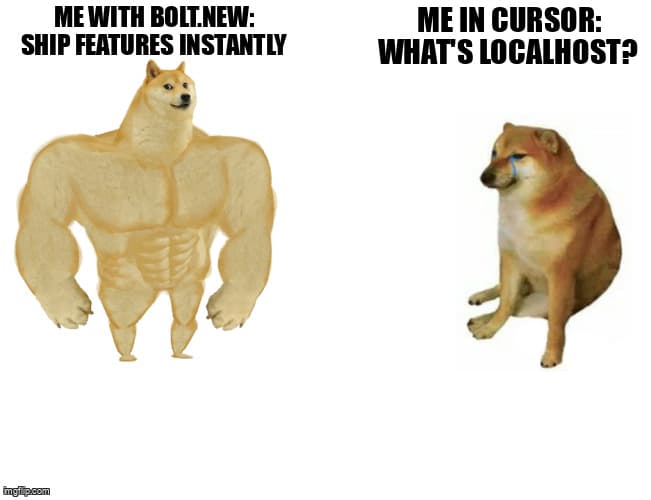
You've been shipping fast with Bolt.new—instant previews, zero setup, AI that just works. But now you're hitting walls: your project is too complex for the browser environment, you need proper version control, or you want deployment flexibility beyond what browser-based tools offer. The good news? You've already mastered the hardest part: rapid iteration with AI assistance. Moving to Cursor doesn't mean losing that velocity—it means gaining control while keeping your speed.
This guide shows you exactly how to migrate your Bolt.new workflow to Cursor IDE without breaking stride. You'll learn how to preserve the instant-feedback loop you love while unlocking professional capabilities like Git integration, custom deployment pipelines, and unlimited project scaling.
Before and After: Your Workflow Evolution
Bolt.new Workflow (What You Know)
- Describe your app in the chat → instant preview
- Make changes → see results immediately in browser
- AI handles dependencies, build config, environment setup
- One-click deploy to hosted environment
Cursor Workflow (Where You're Going)
- Describe changes in Composer → AI edits files directly
- Local dev server → preview in your browser (still instant)
- You control dependencies, config, and environment
- Deploy anywhere: Vercel, Netlify, AWS, your own server
The key insight: Cursor's Composer gives you the same AI-driven development speed, but instead of being locked in a browser sandbox, you're working with real files you can version, customize, and deploy however you want.
Prerequisites Checklist
Before starting the migration, make sure you have:
- Node.js installed (v18 or higher) –
node --versionto check - Cursor IDE installed – Download from cursor.sh
- Git installed (optional but recommended) –
git --versionto check - A Bolt.new project you want to migrate
- 30-60 minutes for first migration (faster after you learn the pattern)
💡 First Timer Tip
Don't migrate your most important project first. Pick a smaller Bolt.new prototype to learn the process. You'll move faster on subsequent migrations once you understand the workflow.
Step-by-Step Migration Guide
Step 1: Export Your Bolt.new Project
In Bolt.new, use the download/export feature to get your project files. You'll receive a ZIP containing:
- Source code files (components, pages, utilities)
package.jsonwith dependencies- Configuration files (vite.config, tsconfig, etc.)
- Public assets (images, fonts)
Extract the ZIP to a new folder on your computer. This becomes your local project directory.
Step 2: Set Up Your Local Development Environment
Open your terminal and navigate to the project directory:
cd ~/Downloads/my-bolt-project

# Install dependencies
npm install

# Start the development server
npm run dev
Your terminal will show a localhost URL (usually http://localhost:5173). Open it in your browser—you now have the same instant preview you had in Bolt.new, but running locally.
What Just Happened?
npm install downloaded all the libraries your project needs (React, Vite, etc.). In Bolt.new, this happened automatically in the cloud. Now you control it locally.
npm run dev started a local development server. Changes you make to files trigger instant hot-reloading in your browser—just like Bolt.new's preview pane.
Step 3: Open Project in Cursor IDE
Launch Cursor and open your project folder (File → Open Folder). You'll see your project structure in the sidebar—all the files Bolt.new was managing for you are now visible and editable.
my-bolt-project/
├── src/
│   ├── components/     # Your React components
│   ├── pages/          # Your app pages
│   └── App.tsx         # Main app entry
├── public/             # Static assets
├── package.json        # Dependencies
└── vite.config.ts      # Build configuration
Keep your browser open with localhost:5173 visible. Position Cursor and your browser side-by-side—this recreates Bolt.new's split-pane experience.
Step 4: Learn Cursor's AI Composer
Cursor Composer is your Bolt.new chat replacement. Open it with Cmd+I (Mac) or Ctrl+I (Windows). Here's the workflow comparison:
Bolt.new Chat vs Cursor Composer
In Bolt.new:
You: "Add a dark mode toggle to the header"
Bolt: [Generates code, updates preview automatically]
In Cursor:
You: "Add a dark mode toggle to the header"
Composer: [Shows proposed file changes]
You: [Review and accept changes]
Browser: [Auto-refreshes with new code]
The difference: Cursor shows you exactly what files it's modifying and lets you review before applying. You're learning the codebase structure while maintaining AI velocity.
Step 5: Initialize Git Version Control
This is your superpower upgrade. Bolt.new didn't give you version history—Cursor does. In your terminal:
# Initialize Git repository
git init

# Create initial commit
git add .
git commit -m "Initial migration from Bolt.new"

# Optional: Connect to GitHub
git branch -M main
git remote add origin https://github.com/yourusername/your-repo.git
git push -u origin main
Now every change you make can be committed, branched, and rolled back. Made a mistake with an AI suggestion? git checkout . reverts everything. This safety net doesn't exist in browser-based tools.
Step 6: Maintain Hot Reload Velocity
Ensure your vite.config.ts (or equivalent) has hot module replacement (HMR) enabled:
import { defineConfig } from 'vite';
import react from '@vitejs/plugin-react';

export default defineConfig({
  plugins: [react()],
  server: {
    port: 5173,
    strictPort: true,
    hmr: {
      overlay: true, // Shows errors in browser
    },
  },
});
With this setup, saving a file in Cursor triggers instant browser updates—matching Bolt.new's responsiveness. Most exported Bolt projects already have this configured.
Step 7: Set Up Deployment
Bolt.new's one-click deploy is convenient but limiting. With local control, you can deploy anywhere. For the fastest Bolt.new-like experience, use Vercel:
# Install Vercel CLI
npm install -g vercel

# Deploy your project
vercel

# Follow prompts to link project
# Future deploys: just run 'vercel' again
Vercel automatically detects Vite/React projects and configures build settings. After initial setup, deployments are as simple as Bolt.new's—but you control environment variables, domains, and preview environments.
Skill Bridge: Translating Bolt.new Concepts
Bolt.new → Cursor Translation Guide
Bolt Chat → Cursor Composer
Cmd+I opens Composer. Same AI-driven development, but you see file diffs before applying changes.
Auto-Preview Pane → localhost + Browser
npm run dev starts local server. Browser auto-refreshes on save (HMR). Position windows side-by-side for same experience.
Automatic Dependencies → package.json Management
Cursor Composer can add dependencies, or use npm install manually. You control versions and updates.
One-Click Deploy → Git Push + Vercel
git push triggers automatic deploys on Vercel/Netlify. Configure once, then it's automatic like Bolt.
Project Snapshots → Git Commits
git commit saves project state. Unlimited history, branching, and rollback—better than Bolt's snapshots.
Troubleshooting Common Migration Issues
Issue: "npm install" Fails with Dependency Errors
Bolt.new sometimes uses package versions that conflict locally. Solution:
# Delete node_modules and package-lock.json
rm -rf node_modules package-lock.json

# Try with legacy peer dependencies flag
npm install --legacy-peer-deps

# Or use npm's force flag
npm install --force
Issue: Environment Variables Not Working
Bolt.new manages environment variables automatically. Locally, create a .env file:
# .env file in project root
VITE_API_KEY=your_api_key_here
VITE_API_URL=https://api.example.com

# Access in code:
const apiKey = import.meta.env.VITE_API_KEY;
Vite requires VITE_ prefix for environment variables to be exposed to client code. Restart dev server after adding .env file.
Issue: Import Paths Don't Work
Bolt.new may use absolute imports that need configuration locally. Update vite.config.ts:
import { defineConfig } from 'vite';
import react from '@vitejs/plugin-react';
import path from 'path';

export default defineConfig({
  plugins: [react()],
  resolve: {
    alias: {
      '@': path.resolve(__dirname, './src'),
      '@components': path.resolve(__dirname, './src/components'),
    },
  },
});
Issue: Cursor Composer Suggestions Are Too Generic
Give Composer more context by referencing specific files:
# Generic (less effective):
"Add authentication"

# Specific (much better):
"In src/components/Header.tsx, add a login button that
calls the authenticateUser function from src/utils/auth.ts"
Cursor also has a Chat mode (Cmd+L) for questions about your codebase. Use Chat to understand, Composer to modify.
Preserving Your Vibe Coding Velocity
The goal isn't to abandon rapid prototyping—it's to enhance it. Here's how to maintain Bolt.new's speed in Cursor:
Speed Optimization Checklist
- Keep dev server running - Don't stop
npm run devbetween sessions. Just wake your computer and continue coding. - Use Composer for multi-file changes - Let AI handle refactors across components. Review diffs, accept all at once.
- Learn keyboard shortcuts - Cmd+I (Composer), Cmd+L (Chat), Cmd+K (inline edit), Cmd+Shift+P (command palette). Speed comes from muscle memory.
- Set up auto-save - Cursor → Settings → Files → Auto Save → "afterDelay". Changes hit browser instantly without manual saves.
- Use Cursor's terminal - View → Terminal (Ctrl+`). Run commands without leaving the editor. Install packages, run builds, commit code—all in one window.
After a few projects, you'll realize you're moving faster than Bolt.new because you're not fighting browser sandbox limitations. Need to use a library that requires file system access? Just install it. Want to customize your build process? Edit the config. Bolt.new's simplicity becomes a constraint—Cursor's flexibility is your new velocity multiplier.
Realistic Time Estimate
Migration Timeline
- First project: 1-2 hours (learning curve + setup)
- Second project: 30-45 minutes (familiar with pattern)
- Third+ projects: 15-20 minutes (muscle memory established)
Most time is spent on initial environment setup (Node.js, Git, Cursor configuration). After your first migration, subsequent projects move much faster.
Key Takeaways
- You're not losing speed—you're gaining control. Cursor Composer provides the same AI-driven development as Bolt.new's chat, but with file-level visibility and version control safety nets.
- Hot reload works the same way. With
npm run devrunning, changes appear instantly in your browser—just like Bolt's preview pane. Position your windows side-by-side for the familiar split-screen experience. - Git is your superpower. Bolt.new offered no undo beyond its limited snapshot system. With Git, every change is versioned, every feature can be branched, and rolling back is trivial. This lets you experiment fearlessly.
- Deploy anywhere, not just one platform. Bolt.new locked you into their hosting. With local development, you can deploy to Vercel, Netlify, Cloudflare Pages, AWS, or your own infrastructure—whatever fits your project needs and budget.
- The learning curve pays dividends. First migration takes 1-2 hours. By your third project, you'll complete the process in 15 minutes. After that, you'll wonder how you tolerated browser-based development's limitations.
You've already proven you can build fast with AI assistance. Moving to Cursor isn't about slowing down to "do things properly"—it's about removing the ceiling on what you can build. Your vibe coding velocity stays intact. Your deployment options multiply. Your ability to scale projects becomes unlimited. That's not a trade-off. That's leveling up.
Ready to level up your development workflow?
Desplega.ai helps solo developers and small teams ship faster with professional-grade tooling. From vibe coding to production deployments, we bridge the gap between rapid prototyping and scalable software.
Get Expert GuidanceRelated Posts
When I Reject v0 Code: Pattern-Matching Rules for Safer UI Generation
A practical v0 review gate for safer generated React UI: AST checks, Playwright smoke tests, accessibility rules, and rejection signals.
Cody's Repository Indexing: Does Cognitive Offloading Create Knowledge Gaps in Large Codebases? | Desplega AI
A practical deep dive into Cody repository indexing, context retrieval, and how indie hackers avoid AI-created knowledge gaps.
Hot Module Replacement: Why Your Dev Server Restarts Are Killing Your Flow State | desplega.ai
Stop losing 2-3 hours daily to dev server restarts. Master HMR configuration in Vite and Next.js to maintain flow state, preserve component state, and boost coding velocity by 80%.