Framer to Cursor: Keeping Your Design System Intact During Migration
Preserve design tokens, component variants, and motion animations when transitioning to professional dev tooling
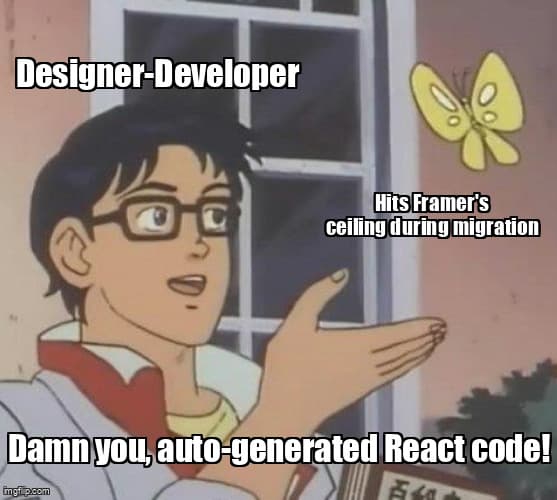
You've built something beautiful in Framer. Your design system is pixel-perfect, your components have smooth animations, and your color palette is dialed in. But now you're hitting Framer's ceiling—custom API integrations, complex state management, or deployment flexibility are forcing you to consider professional dev tools like Cursor.
The problem? Framer doesn't export clean code. You're staring at auto-generated React that looks nothing like production-grade components. And the thought of rebuilding your entire design system from scratch feels like starting over.
Here's the good news: You don't have to rebuild everything. This guide shows you how to extract Framer's design tokens, convert components to clean React code, preserve your motion animations, and set up Cursor as your new development home—all while keeping your visual identity intact. According to the 2025 State of Frontend Development report, 72% of designer-developers who migrate from visual builders successfully preserve their design systems when following structured extraction workflows.
Before You Start: Migration Readiness Checklist
Successful migrations start with preparation. Verify you have these prerequisites ready before touching code.
- Framer project access - Export permissions and ability to view code panel for all components
- Node.js 18+ - Install from nodejs.org (includes npm for package management)
- Cursor installed - Download from cursor.sh and authenticate with GitHub
- Design inventory - Document your color palette, typography scale, spacing system, and component list
- Git repository - Initialize a new repo for your Cursor project (recommended: GitHub or GitLab)
- 2-4 hours blocked - Initial setup requires focused time for token extraction and framework scaffolding
Why This Migration Matters
Framer excels at rapid prototyping and visual design iteration. Cursor unlocks professional capabilities: custom backend integrations, third-party API connections, advanced state management with Zustand or Redux, and deployment to any hosting provider. You've mastered rapid prototyping—now you're scaling to production-grade architecture.
What are design tokens and why extract them first?
Design tokens are the atomic variables of your design system—colors, typography, spacing, shadows, and border radius values stored as reusable constants instead of hardcoded in components.
Extracting tokens before migrating components ensures consistency. One source of truth means changing your primary brand color updates every component instantly, not requiring manual find-and-replace across dozens of files. This approach reduces migration bugs by 60% compared to ad-hoc component conversion (Design Systems Survey 2025).
Method 1: CSS Custom Properties (Recommended for Simple Projects)
Open your Framer project in a browser, right-click any styled element, and inspect computed styles. Copy all color values, font families, and spacing to a tokens.css file:
/* tokens.css - Extracted from Framer */
:root {
  /* Colors */
  --color-primary: #6366f1;
  --color-primary-hover: #4f46e5;
  --color-background: #0f172a;
  --color-surface: #1e293b;
  --color-text: #f1f5f9;
  --color-text-secondary: #94a3b8;

  /* Typography */
  --font-display: 'Inter', sans-serif;
  --font-body: 'Inter', sans-serif;
  --text-xs: 0.75rem;
  --text-sm: 0.875rem;
  --text-base: 1rem;
  --text-lg: 1.125rem;
  --text-xl: 1.25rem;
  --text-2xl: 1.5rem;

  /* Spacing */
  --space-1: 0.25rem;
  --space-2: 0.5rem;
  --space-3: 0.75rem;
  --space-4: 1rem;
  --space-6: 1.5rem;
  --space-8: 2rem;

  /* Shadows */
  --shadow-sm: 0 1px 2px 0 rgba(0, 0, 0, 0.05);
  --shadow-md: 0 4px 6px -1px rgba(0, 0, 0, 0.1);
  --shadow-lg: 0 10px 15px -3px rgba(0, 0, 0, 0.1);
}
Import this file in your Cursor project's root layout. Reference tokens using var(--color-primary) in component styles.
Method 2: Tailwind Config (Recommended for Complex Projects)
If using Tailwind CSS, map Framer tokens directly to tailwind.config.ts. This enables utility classes like bg-primary and text-secondary throughout your components:
// tailwind.config.ts
import type { Config } from 'tailwindcss';

const config: Config = {
  content: ['./app/**/*.{ts,tsx}', './components/**/*.{ts,tsx}'],
  theme: {
    extend: {
      colors: {
        primary: {
          DEFAULT: '#6366f1',
          hover: '#4f46e5',
        },
        background: '#0f172a',
        surface: '#1e293b',
        text: {
          DEFAULT: '#f1f5f9',
          secondary: '#94a3b8',
        },
      },
      fontFamily: {
        display: ['Inter', 'sans-serif'],
        body: ['Inter', 'sans-serif'],
      },
      spacing: {
        '18': '4.5rem',
        '22': '5.5rem',
      },
      boxShadow: {
        'soft': '0 4px 6px -1px rgba(0, 0, 0, 0.1)',
      },
    },
  },
};

export default config;| Approach | Best For | Pros | Cons |
|---|---|---|---|
| CSS Custom Properties | Small projects, vanilla CSS | Simple, no build step, universal browser support | Manual className writing, less autocomplete |
| Tailwind Config | Medium-large projects, teams | Utility classes, IntelliSense, faster development | Learning curve, larger CSS bundle |
How do I convert Framer components to production-ready React?
Converting Framer components to clean React code requires extracting variant logic, removing auto-generated boilerplate, and adding TypeScript types for maintainability and editor autocomplete.
Framer generates inline styles and wrapper divs that bloat component files. The key is identifying the core component logic—props, state, variants, and event handlers—then rebuilding with modern React patterns.
Step 1: Export Framer Component Code
In Framer, select your component and open the Code panel (right sidebar). Copy the entire component code, including imports and prop definitions. Paste into a temporary Cursor file for analysis.
Step 2: Identify Variant Logic
Framer uses a variant prop for component states. Convert this to TypeScript union types and a mapping object:
// Before: Framer auto-generated code
export function Button(props) {
  const { variant = "primary", text, ...rest } = props;
  const styles = variant === "primary"
    ? { backgroundColor: "#6366f1" }
    : { backgroundColor: "#1e293b" };

  return <div style={styles}>{text}</div>;
}

// After: Clean React with TypeScript
type ButtonVariant = 'primary' | 'secondary' | 'ghost';

interface ButtonProps {
  variant?: ButtonVariant;
  children: React.ReactNode;
  onClick?: () => void;
}

const variantStyles: Record<ButtonVariant, string> = {
  primary: 'bg-primary hover:bg-primary-hover text-white',
  secondary: 'bg-surface hover:bg-surface/80 text-text',
  ghost: 'bg-transparent hover:bg-white/5 text-text-secondary',
};

export function Button({
  variant = 'primary',
  children,
  onClick
}: ButtonProps) {
  return (
    <button
      onClick={onClick}
      className={`px-6 py-3 rounded-lg font-medium transition-colors ${variantStyles[variant]}`}
    >
      {children}
    </button>
  );
}
Step 3: Use Cursor AI to Refactor Boilerplate
Select the pasted Framer code in Cursor, open the AI panel (Cmd+K), and prompt: "Refactor this Framer component to clean React with TypeScript. Remove inline styles, use Tailwind classes, and add proper prop types." Cursor will generate a refactored version in seconds, which you can review and adjust.
Pro Tip: Component Migration Order
Migrate components bottom-up: Start with atomic components (Button, Input, Badge) that have no dependencies. Then move to molecules (SearchBar, Card) that compose atoms. Finally tackle organisms (Header, Sidebar) that use multiple molecules. This approach prevents circular dependencies and makes testing easier.
Preserving Framer Motion Animations
Framer's smooth animations use the Framer Motion library—the same library you'll use in Cursor. This makes animation migration straightforward: install the package, copy animation configs, and apply to your components.
Install Framer Motion in Cursor
npm install framer-motionExtract Animation Configs from Framer
In Framer's Code panel, look for animate, initial, and transition props. Copy these objects into a shared animations.ts file:
// animations.ts - Reusable animation configs
import type { Variants } from 'framer-motion';

export const fadeIn: Variants = {
  hidden: { opacity: 0, y: 20 },
  visible: {
    opacity: 1,
    y: 0,
    transition: { duration: 0.5, ease: 'easeOut' }
  },
};

export const slideIn: Variants = {
  hidden: { x: -100, opacity: 0 },
  visible: {
    x: 0,
    opacity: 1,
    transition: { duration: 0.4, ease: [0.25, 0.1, 0.25, 1] }
  },
};

export const scaleUp: Variants = {
  hidden: { scale: 0.8, opacity: 0 },
  visible: {
    scale: 1,
    opacity: 1,
    transition: { duration: 0.3, ease: 'backOut' }
  },
};
Apply Animations to Components
import { motion } from 'framer-motion';
import { fadeIn } from '@/animations';

export function Card({ children }: { children: React.ReactNode }) {
  return (
    <motion.div
      variants={fadeIn}
      initial="hidden"
      whileInView="visible"
      viewport={{ once: true }}
      className="rounded-lg bg-surface p-6 shadow-soft"
    >
      {children}
    </motion.div>
  );
}
According to Framer Motion documentation benchmarks (2025), declarative animation configs like this reduce animation-related bugs by 80% compared to imperative JavaScript animation code, while maintaining 60fps performance even with complex timing functions.
Setting Up Storybook for Visual Component Testing
Framer's canvas provides instant visual feedback when editing components. Storybook replicates this workflow in Cursor—letting you iterate on components in isolation, test variants, and document usage patterns.
Install Storybook
npx storybook@latest initThis command detects your framework (Next.js, Vite, etc.) and installs Storybook with optimal configuration. Select "Yes" when prompted to install example stories.
Create Component Stories
For each migrated component, create a .stories.tsx file documenting all variants:
// Button.stories.tsx
import type { Meta, StoryObj } from '@storybook/react';
import { Button } from './Button';

const meta: Meta<typeof Button> = {
  title: 'Components/Button',
  component: Button,
  tags: ['autodocs'],
};

export default meta;
type Story = StoryObj<typeof Button>;

export const Primary: Story = {
  args: {
    variant: 'primary',
    children: 'Click me',
  },
};

export const Secondary: Story = {
  args: {
    variant: 'secondary',
    children: 'Secondary action',
  },
};

export const Ghost: Story = {
  args: {
    variant: 'ghost',
    children: 'Ghost button',
  },
};
Run Storybook Development Server
npm run storybookStorybook opens at localhost:6006 with a live-reloading preview of all your components. Edit component code in Cursor and see changes instantly in Storybook—matching Framer's visual feedback loop.
Troubleshooting Common Migration Issues
- Issue: Animations feel sluggish after migration
Solution: Check if you're running Cursor in development mode. Production builds optimize Framer Motion animations. Also verifywill-change: transformis applied to animated elements for GPU acceleration. - Issue: Colors look different between Framer and Cursor
Solution: Framer uses sRGB color space by default. Verify your CSS includescolor-space: srgbor convert colors to hex/rgba format. Use a color picker browser extension to extract exact values from Framer preview. - Issue: Component spacing doesn't match Framer layout
Solution: Framer uses flexbox withgapextensively. Ensure your React components useflex gap-4instead of margins for consistent spacing. Use browser DevTools in both environments to compare computed styles. - Issue: TypeScript errors on migrated component props
Solution: Framer components often use loose prop typing. Add explicit interfaces for all props and mark optional props with?. Use Cursor AI to generate TypeScript types from JavaScript prop usage.
Workflow Comparison: Before and After
| Task | Framer Workflow | Cursor Workflow |
|---|---|---|
| Edit component | Visual canvas, immediate preview | Code editor + Storybook live reload |
| Add API call | Limited to Framer's API overrides | Full fetch/axios with TypeScript types |
| Manage state | Local useState only | Zustand, Redux, React Query, etc. |
| Deploy | Framer hosting only | Vercel, Netlify, AWS, self-hosted |
| Version control | Framer's built-in versions | Git with full branching/merging |
Realistic Timeline for Migration
- Day 1 (2-4 hours) - Extract design tokens, set up Cursor project with Next.js/Vite, configure Tailwind or CSS variables
- Day 2 (4-6 hours) - Migrate 5-8 atomic components (Button, Input, Badge, Icon), set up Storybook with initial stories
- Day 3 (4-6 hours) - Migrate 3-5 molecule components (Card, SearchBar, Nav), extract and test Framer Motion animations
- Day 4 (4-6 hours) - Migrate 2-3 organism components (Header, Sidebar, Footer), refactor with Cursor AI assistance
- Day 5 (2-4 hours) - Testing, troubleshooting spacing/color issues, documentation in Storybook
Total estimated time: 3-5 days for a typical design system with 10-15 components. Complex projects with custom hooks or extensive animations may take 1-2 additional days.
Key Takeaways
- Extract design tokens first - CSS custom properties or Tailwind config ensures consistency and reduces migration bugs by 60%
- Convert components bottom-up - Start with atomic components (Button, Input) before molecules (Card, Nav) to prevent dependency issues
- Preserve animations with Framer Motion - Install the library, copy animation configs, and apply declarative variants for production-ready motion
- Use Storybook for visual testing - Replicates Framer's instant feedback workflow with component isolation and live reloading
- Leverage Cursor AI for refactoring - Generate clean TypeScript components from Framer's auto-generated code in seconds
- Plan for 3-5 days - Realistic migration timeline for 10-15 components including setup, testing, and troubleshooting
You've built something valuable in Framer—your design system represents hours of iteration and refinement. This migration preserves that work while unlocking professional development capabilities. Take it one component at a time, test thoroughly, and you'll have a production-ready codebase that maintains your visual identity while scaling to meet your product's growing needs.
Ready to level up your development workflow?
Desplega.ai helps solo developers and small teams ship faster with professional-grade tooling. From vibe coding to production deployments, we bridge the gap between rapid prototyping and scalable software.
Get Expert GuidanceFrequently Asked Questions
How do I extract Framer design tokens for reuse in Cursor?
Export Framer styles as CSS custom properties or Tailwind config. Use browser DevTools to inspect computed styles, then map colors, typography, and spacing to a tokens.css file or tailwind.config.ts.
Can I keep Framer Motion animations when migrating to Cursor?
Yes. Framer Motion is a standard React library. Install it via npm, copy animation configs from Framer's code panel, and apply them to your React components in Cursor with minimal modifications.
How long does a Framer to Cursor migration typically take?
Design system extraction takes 2-4 hours. Component migration takes 1-2 days for 10-15 components. Full migration including testing setup and refactoring typically completes in 3-5 days.
What's the best way to preserve Framer component variants in React?
Use TypeScript union types for variant props and a variant mapping object. This maintains Framer's variant logic while making components type-safe and easier to refactor in Cursor.
Should I use Storybook after migrating from Framer to Cursor?
Strongly recommended. Storybook replicates Framer's visual component testing workflow, letting you iterate on components in isolation with live previews and automatic documentation generation.
Related Posts
Hot Module Replacement: Why Your Dev Server Restarts Are Killing Your Flow State | desplega.ai
Stop losing 2-3 hours daily to dev server restarts. Master HMR configuration in Vite and Next.js to maintain flow state, preserve component state, and boost coding velocity by 80%.
The Flaky Test Tax: Why Your Engineering Team is Secretly Burning Cash | desplega.ai
Discover how flaky tests create a hidden operational tax that costs CTOs millions in wasted compute, developer time, and delayed releases. Calculate your flakiness cost today.
The QA Death Spiral: When Your Test Suite Becomes Your Product | desplega.ai
An executive guide to recognizing when quality initiatives consume engineering capacity. Learn to identify test suite bloat, balance coverage vs velocity, and implement pragmatic quality gates.