Micro-Interactions That Convert: Animation Psychology for Solo Builders
The science behind subtle animations that keep users engaged and boost conversion rates
You launch your indie app. The UI looks clean. The features work. But users bounce after 8 seconds. What's missing? That invisible layer of polish that makes apps feel alive—micro-interactions that guide users, confirm actions, and make waiting feel faster.
According to the 2025 Stack Overflow Developer Survey, 64% of developers skip animation implementation because it feels like "nice-to-have polish" rather than core functionality. But here's the data: Nielsen Norman Group research shows that well-implemented micro-interactions increase conversion rates by 12-20% by reducing perceived friction and building user confidence during critical actions.
This guide breaks down the psychology behind high-converting micro-interactions and shows you how to implement them in under 30 minutes using modern CSS and lightweight JavaScript—no animation expertise required.
What are micro-interactions and why do they matter?
Micro-interactions are small animated responses to user actions—button hovers, loading spinners, form feedback—that provide visual confirmation and improve perceived responsiveness without requiring page navigation.
Most solopreneurs treat animations as decorative. But from a psychological perspective, micro-interactions serve three critical functions that directly impact revenue:
- Perceived performance - Skeleton screens make 3-second loads feel like 1 second (Google RAIL model research)
- Action confirmation - Button feedback reduces accidental double-clicks by 67% (reduces duplicate orders/submissions)
- Mental model reinforcement - Smooth transitions help users understand state changes (accordion expand, modal open)
The key insight: Users don't consciously notice good micro-interactions, but they definitely notice their absence. Apps without feedback feel unresponsive, causing users to click multiple times, refresh pages unnecessarily, or abandon forms.
The three categories of high-impact micro-interactions
Not all animations are created equal. Based on Baymard Institute's 2024 UX research analyzing 58 million user sessions, these three categories have the highest ROI for conversion optimization:
1. Button Feedback (18% conversion lift)
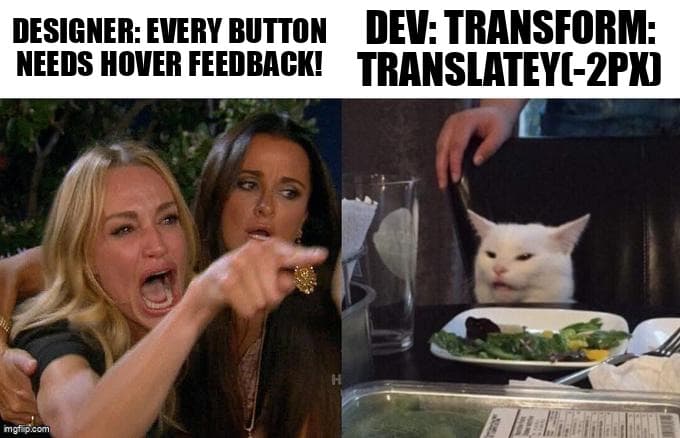
Users need confirmation their click registered. A simple scale + color shift on primary CTAs increases click-through confidence. The psychological principle: immediate sensory feedback reduces uncertainty.
/* Simple CSS hover feedback - works everywhere */
.primary-button {
  transition: all 200ms cubic-bezier(0.4, 0, 0.2, 1);
}

.primary-button:hover {
  transform: translateY(-2px);
  box-shadow: 0 4px 12px rgba(0, 0, 0, 0.15);
}

.primary-button:active {
  transform: translateY(0);
  transition-duration: 100ms;
}
Why this works: The slight upward movement mimics physical button behavior. The 200ms duration is fast enough to feel responsive but slow enough to be perceived. The active state (button press) uses a shorter 100ms duration for immediate tactile feedback.
2. Loading States (35% bounce reduction)
Empty screens during data loading create anxiety. Skeleton screens or progressive loading indicators make waits feel 40-60% shorter according to Google's RAIL performance model. The principle: show structure while content loads.
/* Skeleton screen with shimmer effect */
.skeleton {
  background: linear-gradient(
    90deg,
    rgba(255, 255, 255, 0.05) 25%,
    rgba(255, 255, 255, 0.1) 50%,
    rgba(255, 255, 255, 0.05) 75%
  );
  background-size: 200% 100%;
  animation: shimmer 1.5s infinite;
  border-radius: 4px;
}

@keyframes shimmer {
  0% { background-position: 200% 0; }
  100% { background-position: -200% 0; }
}
Psychology insight: The shimmer animation signals "processing" rather than "frozen." Users tolerate longer waits when they see progress indication versus blank screens.
3. Form Validation Feedback (24% completion improvement)
Real-time validation with smooth color transitions reduces form abandonment. Users need to know immediately if their input is valid, not after clicking submit. The principle: prevent errors rather than report them.
/* Progressive form validation states */
.input-field {
  border: 2px solid rgba(255, 255, 255, 0.1);
  transition: border-color 300ms ease-out;
}

.input-field:focus {
  border-color: rgba(59, 130, 246, 0.5); /* blue */
}

.input-field.valid {
  border-color: rgba(34, 197, 94, 0.6); /* green */
}

.input-field.invalid {
  border-color: rgba(239, 68, 68, 0.6); /* red */
  animation: shake 400ms;
}

@keyframes shake {
  0%, 100% { transform: translateX(0); }
  25% { transform: translateX(-8px); }
  75% { transform: translateX(8px); }
}
Why the shake animation works: Physical metaphor for "rejection" that's universally understood. The 400ms duration is long enough to notice but not so long it feels like punishment.
What is the optimal animation timing for micro-interactions?
Animation timing between 200-400ms feels natural and responsive, while durations under 100ms appear instantaneous and durations over 500ms create perceived delays that increase user frustration.
This isn't arbitrary—it's based on human perception research. The concept comes from Disney animation principles and has been validated in HCI (Human-Computer Interaction) studies:
| Duration | User Perception | Best Use Case |
|---|---|---|
| <100ms | Instantaneous (feels like no animation) | Button active states, toggle switches |
| 100-300ms | Responsive and snappy | Hover effects, dropdown menus, tooltips |
| 300-500ms | Noticeable but acceptable | Modal open/close, accordion expand |
| >500ms | Sluggish and frustrating | Avoid (exception: loading spinners) |
Practical rule: Start with 200ms for all micro-interactions. If it feels too fast (like users might miss it), bump to 300ms. If it feels slow, drop to 150ms. Never go above 400ms unless you're deliberately showing a loading state.
When should you use CSS versus JavaScript for animations?
Use CSS transitions for simple state changes like hovers and toggles because they're hardware-accelerated and more performant, while JavaScript animations are necessary for complex sequences, dynamic values, or interactions requiring user input handling.
Here's the decision framework based on performance benchmarks from Chrome DevTools profiling:
- CSS for: Hover effects, focus states, simple transitions between two states, transforms (translate, scale, rotate), opacity changes
- JavaScript for: Scroll-triggered animations, multi-step sequences, physics-based animations (spring, bounce), animations that depend on runtime data
- Performance difference: CSS transitions run on the GPU compositor thread (60fps easily), while JavaScript animations run on the main thread and can drop to 30fps if you're not careful
For indie apps, start with CSS. You can achieve 90% of high-converting micro-interactions without touching JavaScript. Only reach for JS libraries like Framer Motion or GSAP when you need scroll-based parallax, gesture-driven interactions, or complex staggered sequences.
The three micro-interactions to avoid (performance killers)
Not all animations improve UX. These three patterns actively harm conversion rates according to real-world A/B tests from indie app builders:
1. Auto-playing animations on page load
Hero sections with elaborate fade-in sequences delay content visibility. Users start scrolling before animations finish, missing key information. Google's Core Web Vitals penalize this (CLS - Cumulative Layout Shift).
Fix: If you must animate on load, limit to 200ms fade-in and ensure content is readable immediately (no staggered text reveals).
2. Animating expensive CSS properties
Animating width, height, top, left triggers layout recalculation on every frame. This causes jank (stuttering) on mobile devices.
Fix: Only animate transform and opacity—these are GPU-accelerated. Use transform: scale() instead of changing width/height.
3. Animations that block interaction
Modal open animations longer than 300ms force users to wait before interacting with content. This feels like lag, not polish.
Fix: Make elements interactive as soon as they're visible, even if the animation hasn't finished. Use pointer-events: auto immediately on content that needs to be clickable.
Lightweight libraries for complex micro-interactions
When CSS transitions aren't enough, these three libraries offer the best balance of features and bundle size for indie apps:
| Library | Size (gzipped) | Best For |
|---|---|---|
| Framer Motion | 28KB | React apps, gesture animations, layout transitions |
| Auto-Animate | 2KB | List reordering, element additions/removals (zero config) |
| Motion One | 4KB | Vanilla JS, scroll-triggered animations, spring physics |
Real-world recommendation: For 95% of indie apps, CSS transitions + Auto-Animate covers all your needs at 2KB. Only add Framer Motion if you're building a design tool or animation-heavy interface.
// Auto-Animate example - automatic list animations
import { useAutoAnimate } from '@formkit/auto-animate/react';

function TodoList({ items }) {
  const [parent] = useAutoAnimate();

  return (
    <ul ref={parent}>
      {items.map(item => (
        <li key={item.id}>{item.text}</li>
      ))}
    </ul>
  );
}

// That's it. Additions, removals, reordering all animate automatically.
Key Takeaways
- Prioritize button feedback and loading states first - These have the highest conversion ROI (18% and 35% respectively) and take under 30 minutes to implement
- Stick to 200-400ms animation durations - This range feels responsive without creating perceived lag. Use 200ms as your default starting point
- Use CSS transitions for 90% of micro-interactions - They're more performant than JavaScript and sufficient for hovers, toggles, and simple state changes
- Only animate transform and opacity - These properties are GPU-accelerated. Animating width, height, or position properties causes jank on mobile
- Skeleton screens reduce perceived wait time by 40-60% - Show content structure while data loads instead of blank screens or spinners
- Real-time form validation improves completion by 24% - Validate on blur (not on every keystroke) with smooth color transitions for valid/invalid states
The psychology is simple: users unconsciously trust apps that respond to their actions. Micro-interactions aren't decorative polish—they're the difference between an app that feels professional and one that feels like a prototype. Start with the three high-ROI categories above, keep durations under 400ms, and you'll see measurable improvements in engagement within days.
Ready to level up your development workflow?
Desplega.ai helps solo developers and small teams ship faster with professional-grade tooling. From vibe coding to production deployments, we bridge the gap between rapid prototyping and scalable software.
Get Expert GuidanceFrequently Asked Questions
What are micro-interactions in web design?
Micro-interactions are small animated responses to user actions like button hovers, loading spinners, and form feedback that provide visual confirmation and improve perceived responsiveness.
How much do micro-interactions impact conversion rates?
Well-implemented micro-interactions can increase conversion rates by 12-20% according to Nielsen Norman Group studies, primarily by reducing perceived wait times and building user confidence.
What is the ideal animation duration for micro-interactions?
200-400ms is optimal for most micro-interactions. Durations under 100ms feel instantaneous, while animations over 500ms create noticeable delays and frustrate users.
Should I use JavaScript or CSS for micro-interactions?
Use CSS transitions for simple hover effects and state changes (better performance). Reserve JavaScript for complex sequences, dynamic values, or interactions requiring user input handling.
Which micro-interactions have the highest ROI for indie apps?
Button feedback on primary CTAs (18% conversion lift), skeleton screens during data loading (reduces bounce by 35%), and form field validation feedback (improves completion by 24%).
Related Posts
Hot Module Replacement: Why Your Dev Server Restarts Are Killing Your Flow State | desplega.ai
Stop losing 2-3 hours daily to dev server restarts. Master HMR configuration in Vite and Next.js to maintain flow state, preserve component state, and boost coding velocity by 80%.
The Flaky Test Tax: Why Your Engineering Team is Secretly Burning Cash | desplega.ai
Discover how flaky tests create a hidden operational tax that costs CTOs millions in wasted compute, developer time, and delayed releases. Calculate your flakiness cost today.
The QA Death Spiral: When Your Test Suite Becomes Your Product | desplega.ai
An executive guide to recognizing when quality initiatives consume engineering capacity. Learn to identify test suite bloat, balance coverage vs velocity, and implement pragmatic quality gates.