Installation Guide
Complete guide to installing the Vibe QA Extension in Chrome and configuring your desplega.ai API key.
Prerequisites
- Chrome browser (version 88 or higher)
- Desplega.ai account (optional, sign-up here)
- Lovable.dev account (optional, for testing)
Installation from Chrome Web Store
The easiest way to install the Vibe QA Extension—just one click!
Step 2: Add to Chrome
- Click the Add to Chrome button
- Confirm by clicking Add extension in the popup
- The extension icon will appear in your Chrome toolbar
Step 3: Pin the Extension (Optional)
For easy access, pin the extension to your toolbar:
- Click the puzzle piece icon in Chrome toolbar
- Find "Desplega.ai Vibe QA"
- Click the pin icon next to it
✅ That's it! The extension is now installed and ready to use. Continue to the next section to configure the extension.
Configure the Extension
Step 1: Open Extension Popup
Click the Desplega.ai extension icon in your Chrome toolbar. If you don't see it, click the puzzle piece icon and pin the extension.
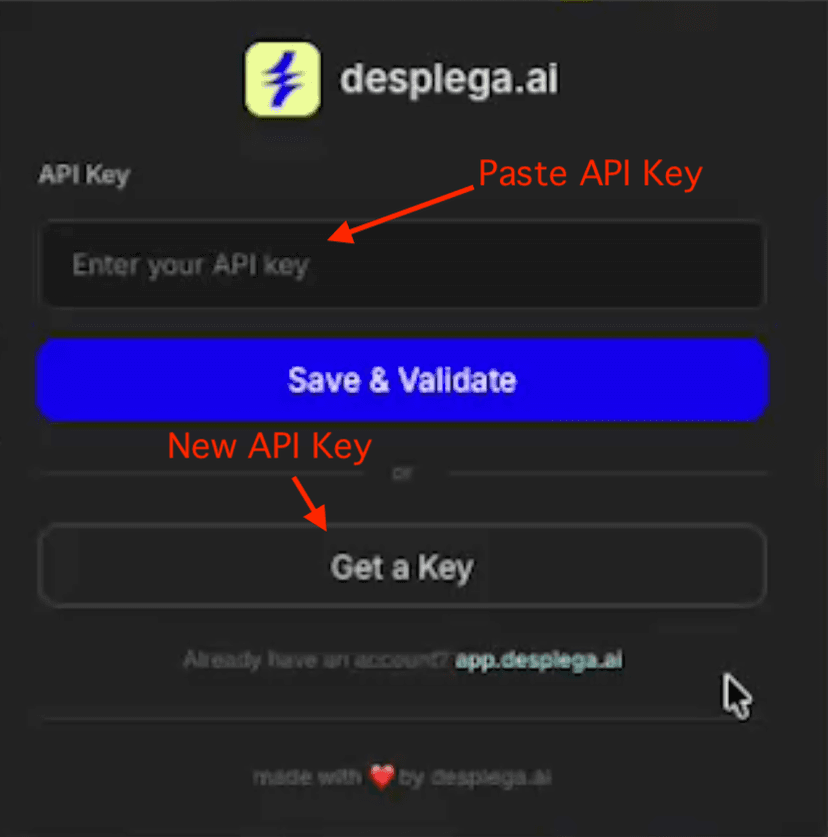
Step 2: Enter API Key
- Paste your API key in the input field
- Click Save
- You should see a success message
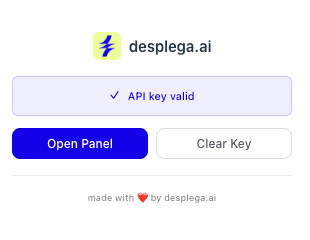
Step 3: Verify Configuration
The popup should show:
- ✅ API key configured
- ✅ Connection to desplega.ai successful
Generate Your API Key
Step 1: Sign Up or Log In
Visit app.desplega.ai and sign up or log in to your account.
Step 2: Navigate to Settings
Click your profile icon (top-right) and select Settings.
Step 3: Generate API Key
- Go to the API Keys tab
- Click Generate New Key
- Give your key a name (e.g., "Vibe QA Extension")
- Click Create
⚠️ Important: If you don't do this, our system will generate a new API key for you. You will need to log in to that specific organization later on.
Verify Installation
Let's make sure everything is working correctly:
- 1
Open Lovable.dev
Navigate to Lovable.dev and open any project.
- 2
Look for QA Button
You should see a new QA button in the Lovable.devtoolbar (usually top-right area).
- 3
Click the QA Button
The Vibe QA panel should open, replacing your preview. If you see the panel, congratulations! 🎉
Troubleshooting
Extension Icon Not Appearing
Click the puzzle piece icon in Chrome toolbar and pin the extension
Verify the extension is enabled at chrome://extensions/
Try disabling and re-enabling the extension
Restart Chrome
QA Button Not Appearing in Lovable.dev
Refresh the Lovable.dev page (F5 or Cmd+R)
Clear browser cache and cookies
Check browser console for errors (F12 → Console)
Verify you're on a Lovable.dev editor page, not the dashboard
Try disabling other extensions that might interfere
API Key Won't Save
Check Chrome's site settings allow local storage
Try clearing Chrome cache and cookies
Verify no other extensions are blocking storage
Check browser console for errors (F12 → Console)
Related Guides
Vibe QA Extension
Power your vibe coding workflow with AI-powered QA testing. The Desplega.ai Vibe QA Extension integrates seamlessly with Lovable, bringing enterprise-grade testing directly into your development workflow.
Watch the Magic
Watch as Vibe QA attempts to execute your test autonomously. Understand how the agent interacts with your application in real-time.
Your First Test
Create and configure your first test with Vibe QA. Learn how to write effective test descriptions and start your first testing session.